
Alright, folks, let’s talk about those pesky reviews that make your blood boil. You know the ones – they’re clearly fake, violate Amazon’s guidelines, or maybe the buyer just had a bad Tuesday and decided to take it out on your stellar widget. Ignoring them is like ignoring a leaky faucet; it might seem small at first, but eventually, it’ll flood your sales.
So, let’s roll up our sleeves and learn how to fight back with a step-by-step guide to submitting a review violation case.
Why Bother? (The “Why Your Mama Would Be Proud” Part)
Before we get into the nitty-gritty, let’s quickly touch on why this is important. Those unfair reviews can tank your conversion rates, damage your brand reputation, and generally make your Amazon life more stressful than it needs to be.
Getting rid of illegitimate feedback is crucial for maintaining a healthy listing and a thriving business. Think of it as weeding your garden – you gotta pull out the bad stuff so the good stuff can grow.
The Step-by-Step Guide: Your Review-Busting Toolkit
Here’s your battle plan for tackling those rogue reviews:
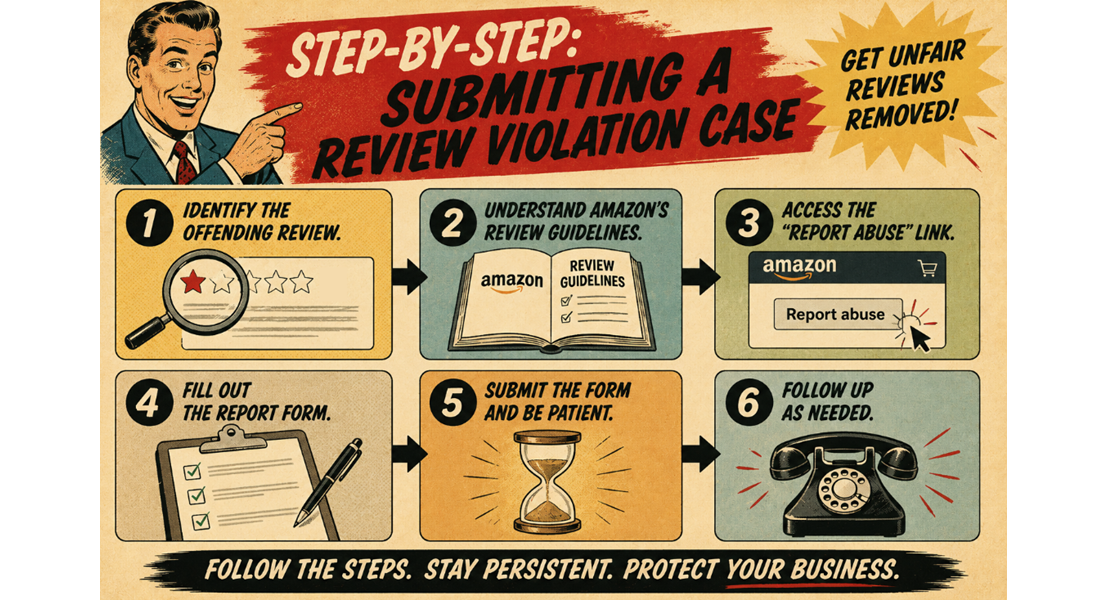
Step 1: Identify the Offending Review
First things first, you need to pinpoint the exact review that’s causing you grief. Head over to your product listing and find the review in question. Note down the date of the review and the reviewer’s name (or pseudonym).
Step 2: Understand Amazon’s Review Guidelines (Know Your Enemy)
Before you start firing off reports, make sure you know what constitutes a violation. Amazon’s Community Guidelines outline what’s not allowed in reviews. This includes:
- Promotional content: Reviews that are clearly advertisements for other products or services.
- Off-topic content: Reviews that have nothing to do with the product itself (e.g., political rants, shipping complaints – though shipping issues should be directed at the seller feedback).
- Personal information: Reviews that reveal private details about the seller or other customers.
- Obscene or offensive language: Self-explanatory, hopefully.
- Bias: Reviews from family members, competitors, or those who have been paid to leave a review (this is a big no-no).
- Misleading information: Factually incorrect statements about the product.
Step 3: Access the “Report Abuse” Link (Your Secret Weapon)
This is where the magic happens (or at least, where you start the process).
- Go to the specific product listing where the review is located.
- Scroll down to the “Customer reviews” section.
- Look for the individual review you want to report. Underneath the review text, you should see a “Report abuse” link. Click on it.
- Pro Tip: Sometimes, this link isn’t immediately visible. Hovering your mouse over the review might make it appear.
Step 4: Fill Out the Report Form (Be Clear and Concise)
Clicking “Report abuse” will usually open a pop-up window or redirect you to a reporting form. Here’s how to fill it out effectively:
- Reason for reporting: You’ll likely be presented with a dropdown menu of reasons. Choose the option that best fits the violation you identified in Step 2. Be specific! Don’t just say “it’s a bad review.” Choose something like “The review contains promotional content” or “The review is off-topic.”
- Provide details (The “Evidence Locker”): This is crucial. In the text box provided, clearly and concisely explain why you believe the review violates Amazon’s guidelines. Reference the specific points from Step 2. For example:
- “This review mentions a competing product by name and urges customers to buy that instead.” (Promotional content)
- “The reviewer is complaining about the shipping speed, which is a fulfillment issue and not related to the product quality.” (Off-topic content)
- “The reviewer states they received a free product in exchange for this review, which violates Amazon’s policy.” (Bias)
- Provide the date and reviewer name (Reinforce the Target): Include the date of the review and the reviewer’s name (or pseudonym) again in your explanation to ensure Amazon knows exactly which review you’re talking about.
- Attach evidence (If Applicable): If you have any supporting evidence (e.g., screenshots of messages, social media posts), some reporting systems might allow you to attach them. If not, clearly mention the evidence you possess in your detailed explanation.
Step 5: Submit and Be Patient (The Waiting Game)
Once you’ve filled out the form and attached any evidence, hit that “Submit” button. Now comes the hard part: waiting. Amazon’s review moderation team receives a high volume of reports, so it can take some time for them to review your case.
Step 6: Follow Up (Gentle Nudging)
If you haven’t heard back from Amazon after a reasonable amount of time (usually a few days to a week), you can try following up through Seller Central. Navigate to your “Customer Feedback” section and see if there’s any update on your reported review. You can also try contacting Seller Support, but be prepared to provide all the details of your initial report.
Important Considerations (The “Don’t Be That Guy/Gal” Part)
- Don’t report reviews simply because they are negative. The review must genuinely violate Amazon’s guidelines.
- Be professional and factual in your reports. Emotional language won’t help your case.
- Focus on the violation, not the reviewer.
- Understand that Amazon’s decision is final. Not all reported reviews will be removed.
Dad Joke Break: Why did the review get a bad grade? Because it didn’t make any cents!
Take Control
Tired of unfair reviews dragging down your listing? Take control! Follow this step-by-step guide to report review violations and protect your hard work.
For more in-depth strategies on managing your Amazon reputation and dealing with negative feedback, book a call and find out how we can help.
Ecom Triage removes negative Amazon reviews for you.